What activation gives you
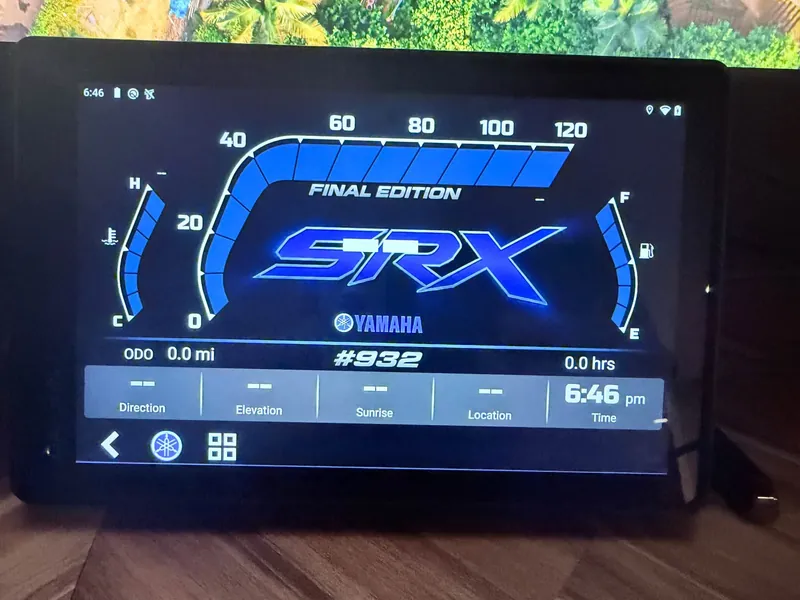
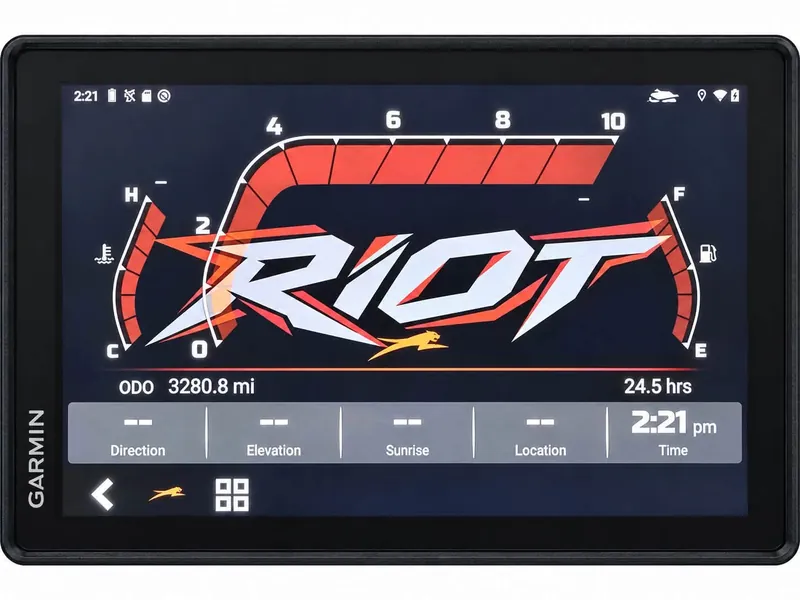
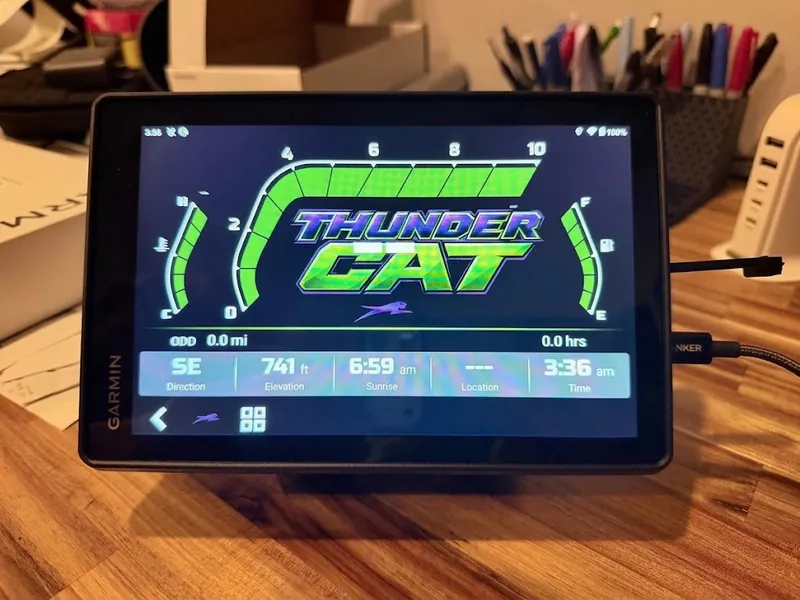
Custom themes
Recolour your G8 display to match your machine using our theme builder
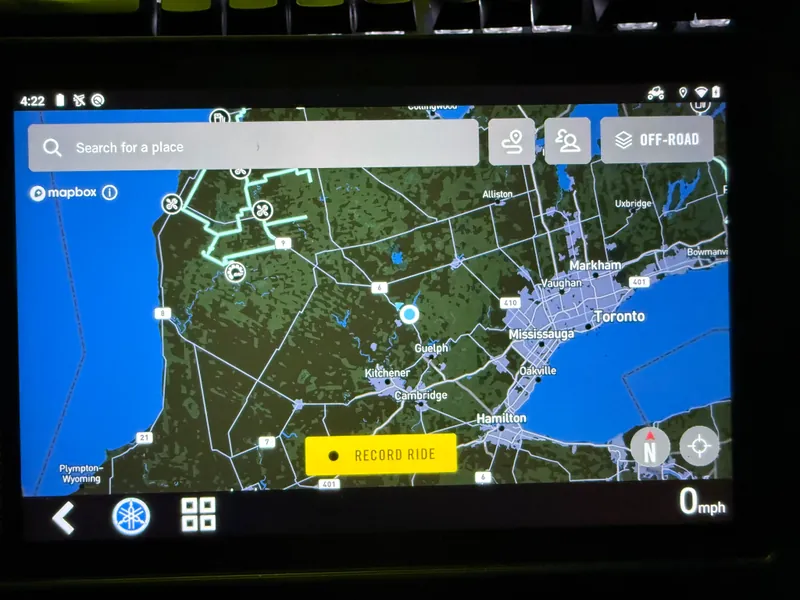
Run the apps you want
Run apps not included by default. Mapping apps that would install and close immediately are now usable.
Access vehicle data
Enables interfaces the device already has but does not expose, including the data your machine publishes on its CAN network.
Updateable, re-themeable
Your device stays rooted, so future updates are a download rather than a teardown. Activation is tied to the device, not the computer you use.
What you need
- A computer — Windows, macOS or Linux.
- Chrome, Edge, Brave or Opera, up to date.
- A USB-C data cable (not a charge-only one).
- Firmware 7.0 or earlier.
- About 20 minutes.
The download is about 150 MB on most machines and up to 700 MB on older firmware. No driver is required on Windows or macOS; the computer recognises the device on its own. The USB-C port is on the right-hand side of the display. Newer firmware is refused before any change is made, so an unsupported unit is a wait rather than a risk.
How it works
- Enable Developer options and USB debugging on the G8. The step-by-step guide covers this.
- Connect your G8 to your computer and select Connect device in the app. The browser lists the devices available; select the G8 display.
- Accept the terms and pay with Stripe. The amount is shown before anything is charged.
- The install runs. Your device will restart a few times during the process, which is expected.
Read the full step-by-step guide →
Common questions
How much does it cost?
Activation is a one-time purchase, not a subscription, and it is tied to the device rather than to the computer you install from — so it survives updates, and changing computer does not mean buying it again.
The price is confirmed on the payment page.
What do I need in front of me?
- The G8 itself, powered up.
- A computer running Windows, macOS or Linux (desktop or laptop).
- Chrome, Edge, Brave or Opera, up to date.
- A USB-C data cable (not a charge-only one — see the guide).
- About 20 minutes, most of which is waiting.
No driver is required on Windows or macOS: the computer recognises the G8 on its own. The USB-C port is on the right-hand side of the display.
Is my firmware supported?
This build is validated for firmware 7.0 and earlier. If your unit is newer, the app reports this and leaves the device untouched.
Support for newer firmware is added once it has been validated. If your unit is not yet supported, email [email protected] and we will let you know as soon as it is.
What if something goes wrong?
You are modifying system software on a device you own, at your own risk. The device retains a second copy of its current system and falls back to it if an update fails to boot, so a failed install will usually recover on its own.
Please read the Terms of Purchase and Disclaimers before purchasing. They cover this in more detail than a FAQ can.
Before you buy
If you are unsure whether your machine is supported, email [email protected] with your machine and device model and we will confirm before you order.